Linking a raw material to a product
This guide explains how to link existing raw materials to a product from the merchant app, so that every sale automatically deducts the correct quantity from inventory and enables accurate food cost and stock control.
Prerequisites
- You are logged in to the merchant app with a role that has edit access to Inventory and Products/Menu.
- The raw material is already created in the Inventory → Base Menu → Raw materials list.
- The product (menu item) is already created in the Inventory → Base Menu → Products list.
Step 1: Open the Products list
- From the main navigation bar, tap Inventory → Base Menu → Products.
Step 2: Link ingredients
-
Locate the product you want to link raw materials to (for example, Veg Biryani).
-
Tap the three dots icon next to the product and select Link ingredients.
-
In the Link ingredients dialog, tap the Add button next to the product name.
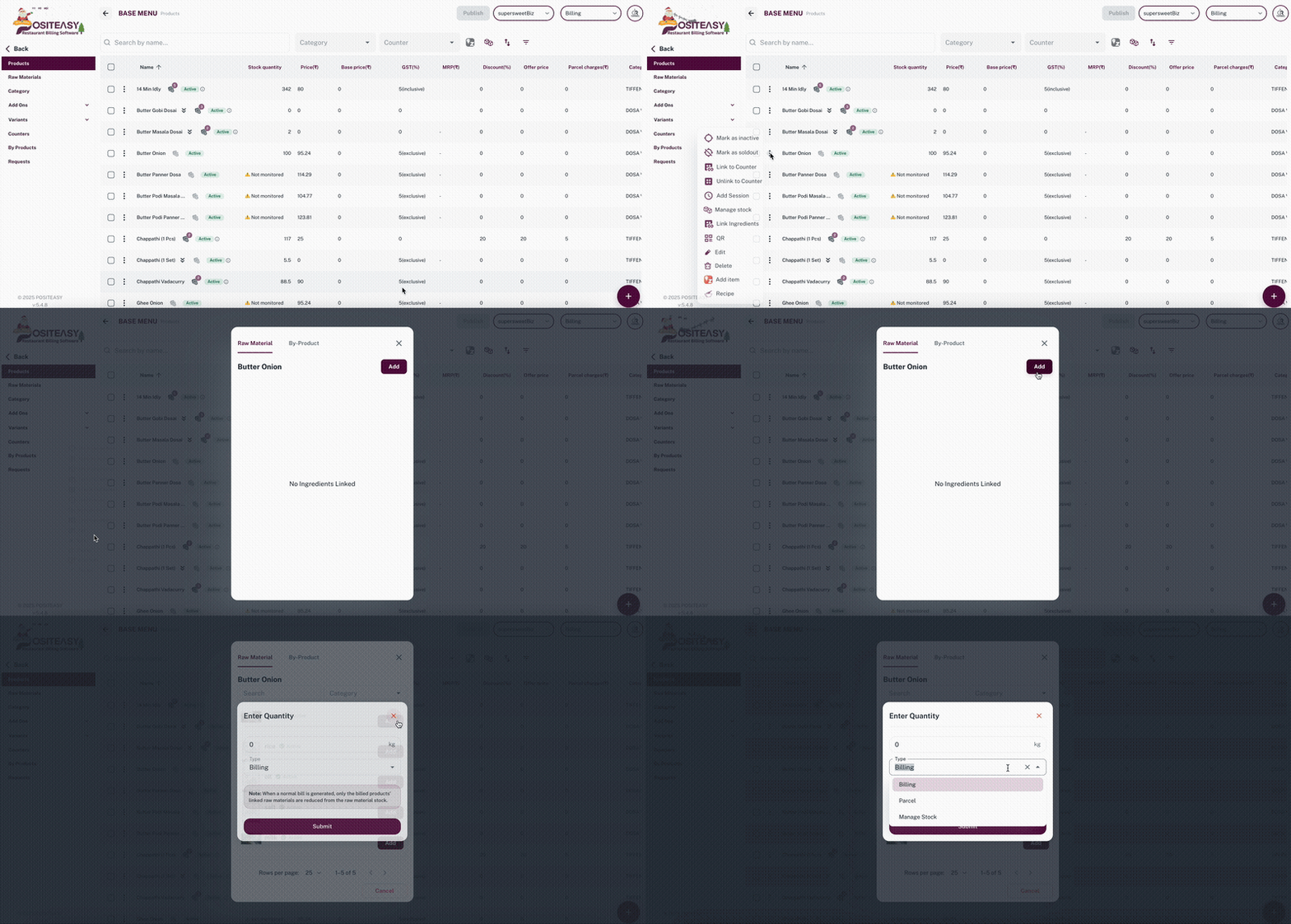
Example of the Link ingredients page.
Step 3: Select the raw materials to be linked
-
Select the raw materials to be linked to the selected product.
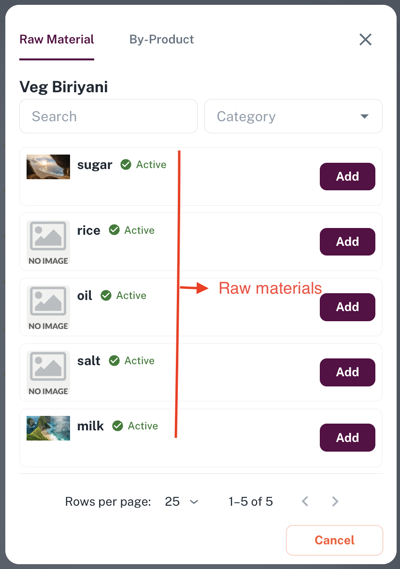
Step 4: Add raw materials and quantities
In Raw materials, set up the consumption per 1 unit of the product:
-
In the search box, type and select the required raw material from the raw material list (for example, Basmati Rice, Carrot, Oil).
-
Tap Add.
-
For each selected raw material, enter:
-
Quantity: The consumption per 1 sale of this product (for example, 250).
-
Type: Controls when the selected raw material quantity will be reduced from stock.Select any one of the following:
Billing: Raw material stock is reduced automatically whenever this product is sold and billed in the POS (dine‑in or counter orders).
Parcel: Raw material stock is reduced automatically when this product is sold in parcel orders.
Manage Stock: Raw material stock is reduced only through manual adjustments (for example, wastage, internal usage, stock corrections) in the inventory module, not from billing.
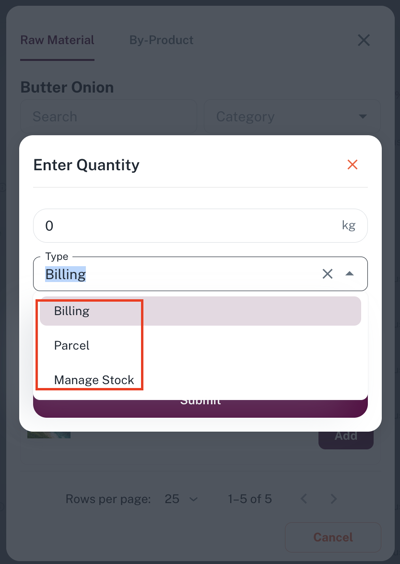
-
-
Repeat steps 1–3 until all required raw materials for the product recipe are added.
Example: For Veg Biryani (1 plate), you might configure:
- Basmati Rice – 250 Gram.
- Carrot – 200 Gram.
- Oil – 30 ml.
Step 5: Save the product
- Review the list of raw materials and quantities.
- Tap Submit to complete the link between the product and its raw materials.
After this, each time the product is sold, the configured quantities of linked raw materials are automatically deducted from inventory, helping maintain accurate stock and food cost tracking.